TutorialVideoStorage

Complete Guide to Video Compression

PhoneCleanKit TeamDecember 28, 20256 min read
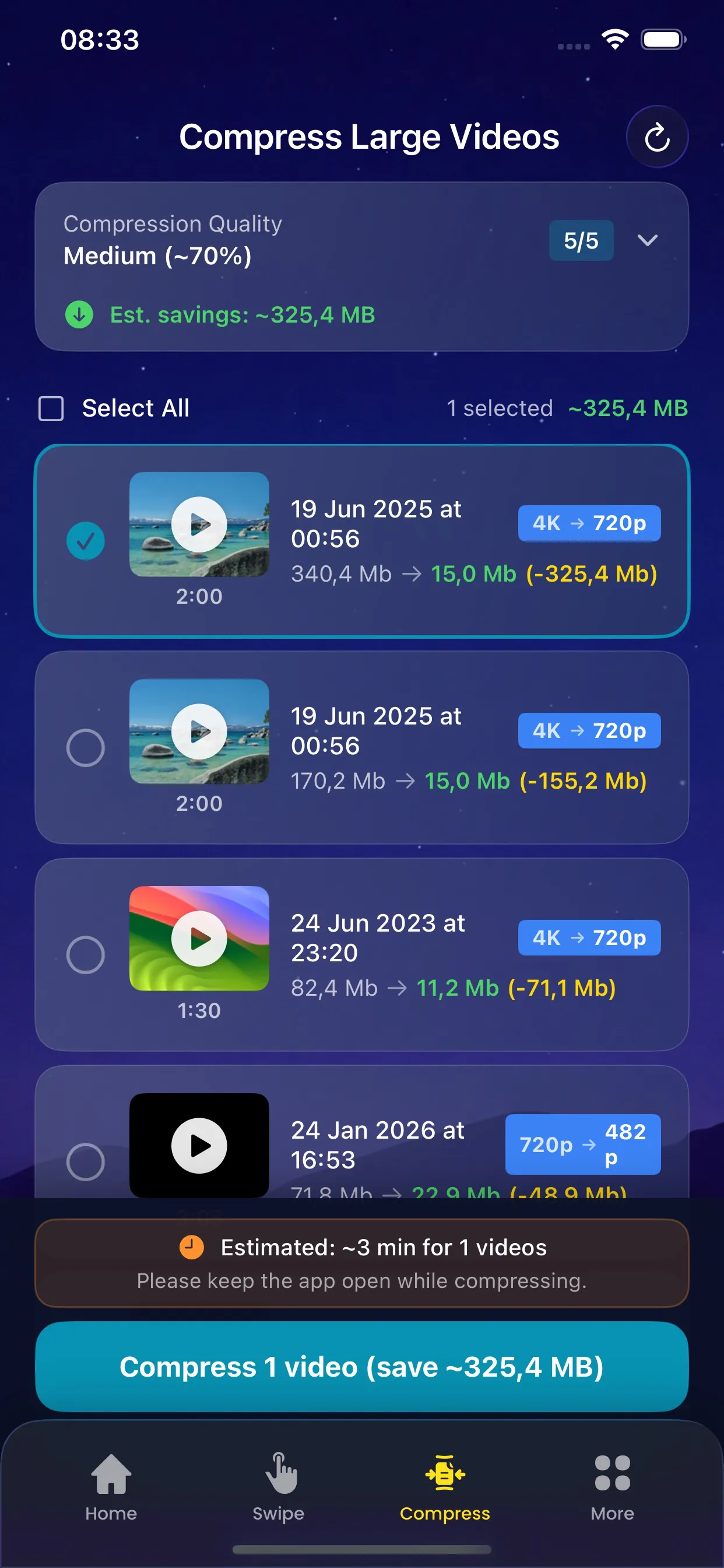
Complete Guide to Video Compression Screenshot

Complete Guide to Video Compression

Videos are often the biggest storage hogs on your iPhone. A single 4K video can easily take up several gigabytes. PhoneCleanKit's Video Compression feature helps you reclaim that space.

Understanding Video Compression

Video compression reduces file size by:

  • Optimizing the video codec
  • Adjusting the bitrate
  • Reducing resolution when beneficial
  • Removing redundant data
  • How PhoneCleanKit Compresses Videos

    Our intelligent compression algorithm analyzes each video and determines the optimal settings to reduce size while maintaining visual quality.

    Quality Levels

  • High Quality: Up to 50% reduction, virtually no visible difference
  • Balanced: Up to 70% reduction, minor quality trade-off
  • Maximum Compression: Up to 80% reduction, noticeable on large screens
  • What Gets Preserved

  • Audio quality
  • Video duration
  • Metadata and creation date
  • HDR information (when possible)
  • Step-by-Step Guide

  • Open PhoneCleanKit and go to the Compress tab
  • Select the videos you want to compress
  • Choose your quality level
  • Preview the compression results
  • Confirm and save the compressed videos
  • Best Practices

  • Preview first: Always preview compressed videos before saving
  • Keep originals temporarily: The original goes to Recently Deleted
  • Start with largest videos: These offer the biggest space savings
  • Consider the viewing context: Videos watched only on phone can be compressed more
  • Storage Savings Examples

    Original SizeAfter CompressionSavings
    1 GB (4K 2min)250 MB750 MB
    500 MB (1080p 5min)150 MB350 MB
    2 GB (4K 4min)500 MB1.5 GB

    Start compressing your videos today and free up gigabytes of storage!

    Try PhoneCleanKit Today

    Download PhoneCleanKit and start freeing up space on your iPhone or iPad.

    Download on the
    App Store